Get API Key – Anthropic
Follow these steps to get your Anthropic API key for Claude. This takes about 5 minutes.
Go to the Claude Console
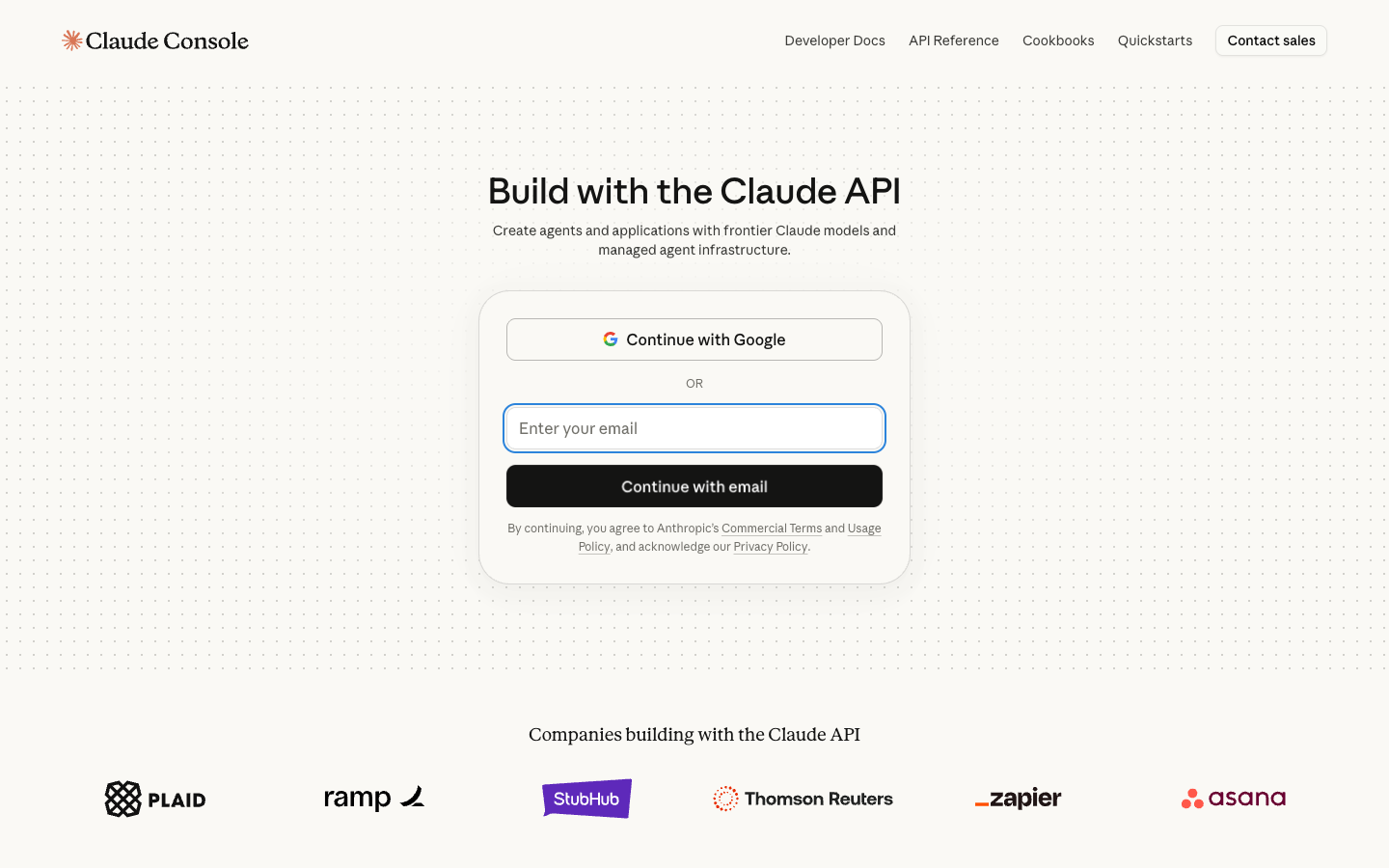
The Claude Console landing page at platform.claude.com. This is the developer console — it's different from claude.ai.
Open platform.claude.com in your browser (the old console.anthropic.com URL still redirects here). This is the API console — it's different from claude.ai.
Log in or create an account
Sign in with Google, email, or SSO. New users can create an account with the same form.
Use your existing Anthropic account or create a new one. You can continue with Google, sign up by email, or use SSO.
Open the API Keys section
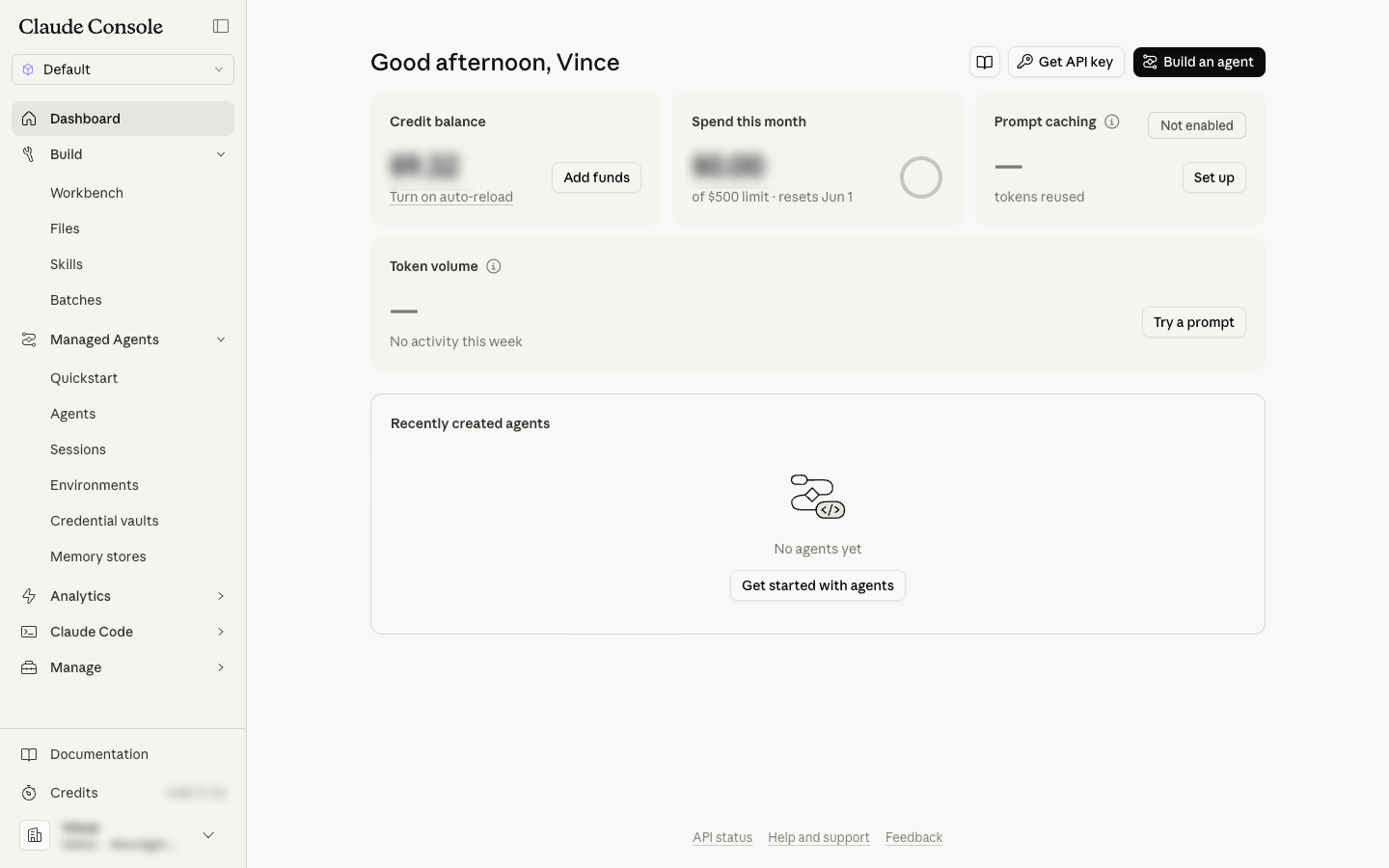
After logging in, click 'Get API key' in the top right, or expand 'Manage' in the left sidebar and choose 'API keys'.
Once logged in, click the Get API key button in the top right of the dashboard. You can also expand Manage in the left sidebar and choose API keys, or go directly to platform.claude.com/settings/workspaces/default/keys.
Click 'Create key'
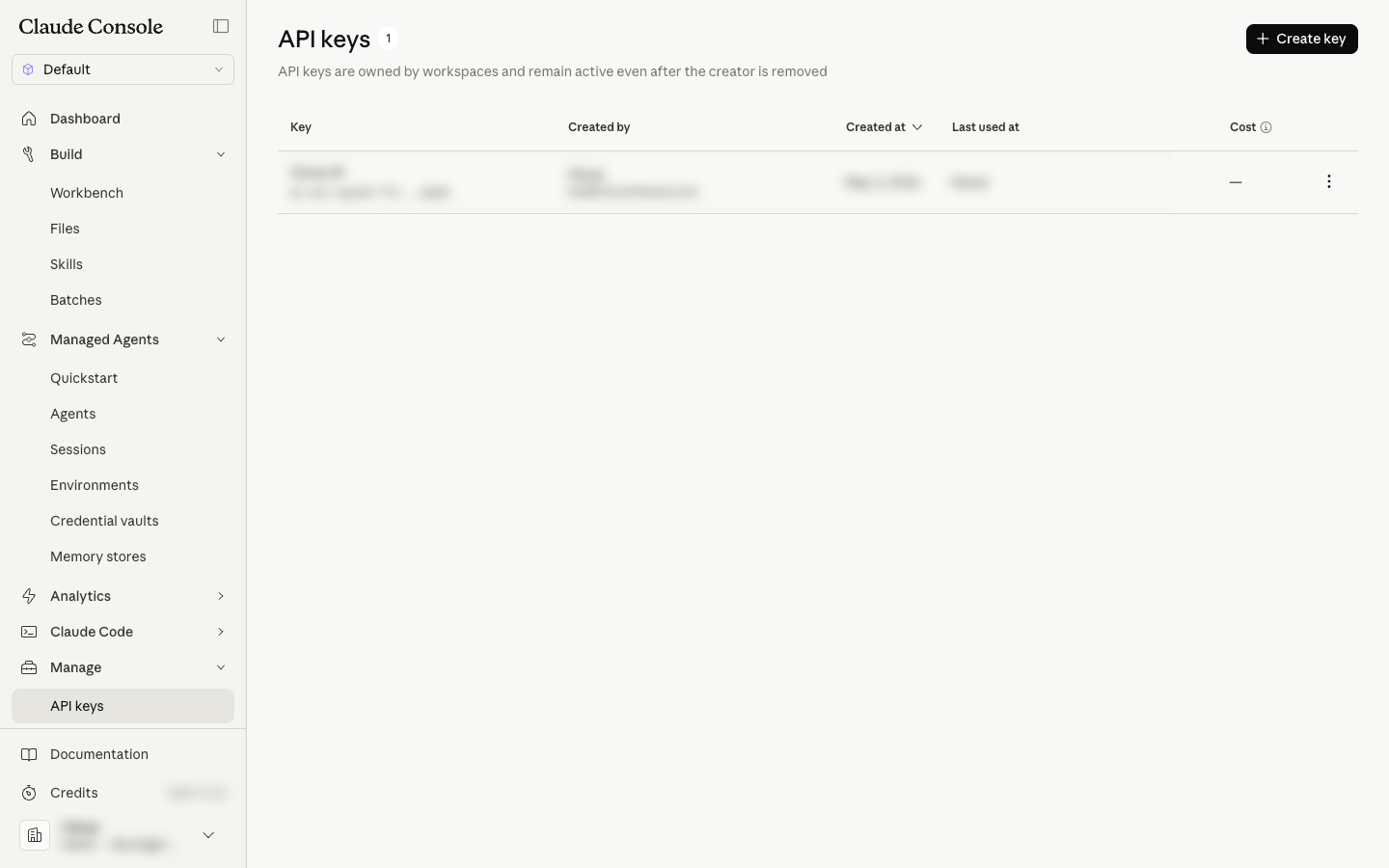
The API keys page. Click the 'Create key' button in the top right to generate a new key.
On the API keys page, click the Create key button in the top right.
Give it a name
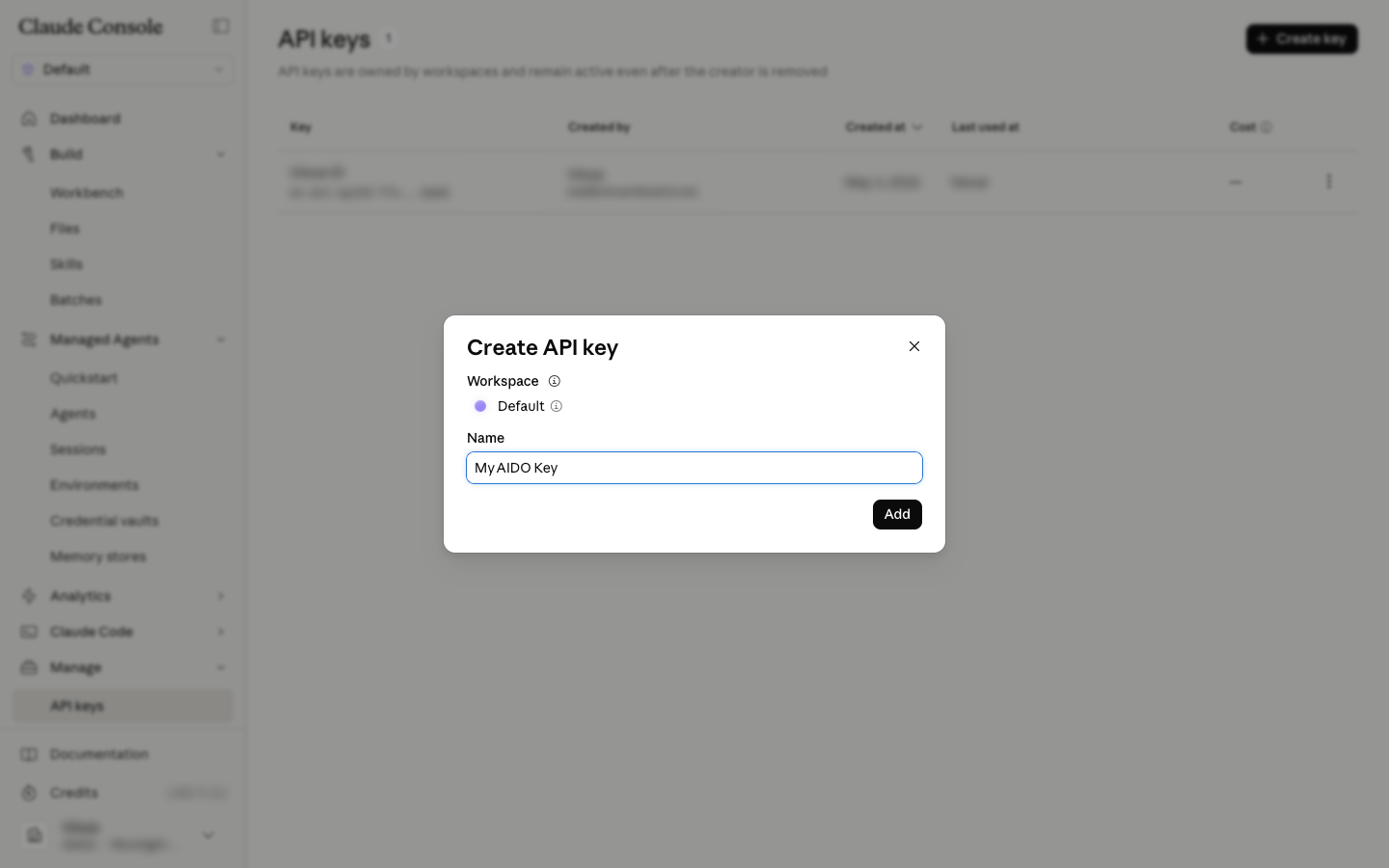
The Create API key dialog. Keep the workspace as 'Default', enter a name like 'My AIDO Key', then click 'Add'.
Enter a name for your key — for example, My AIDO Key. Keep the workspace set to Default, then click Add.
Copy the key immediately
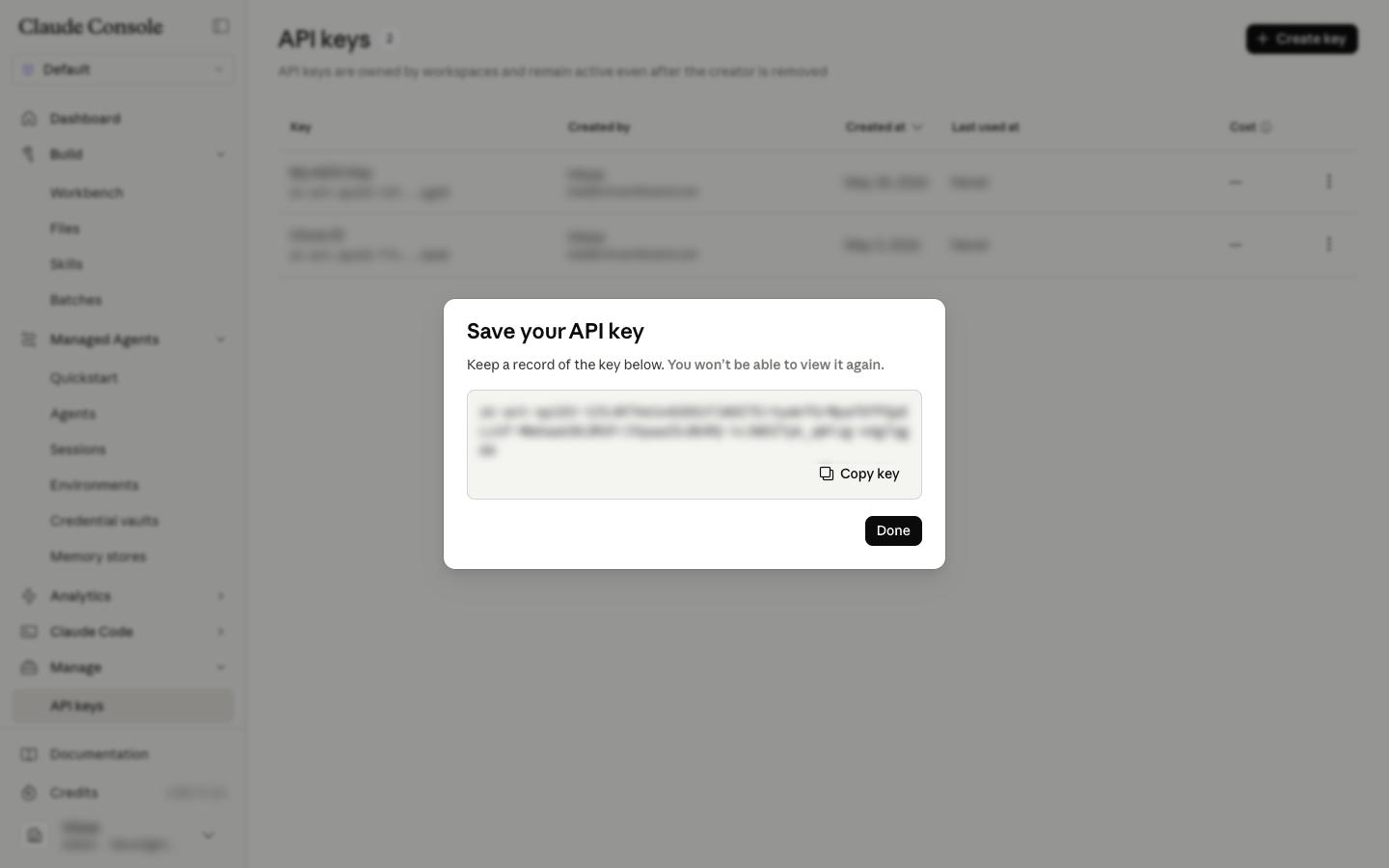
The 'Save your API key' dialog. Click 'Copy key' and store it somewhere safe — you won't be able to view this key again after closing this dialog.
Your key will be shown once. Click Copy key and store it securely. You won't be able to view it again after closing this dialog.